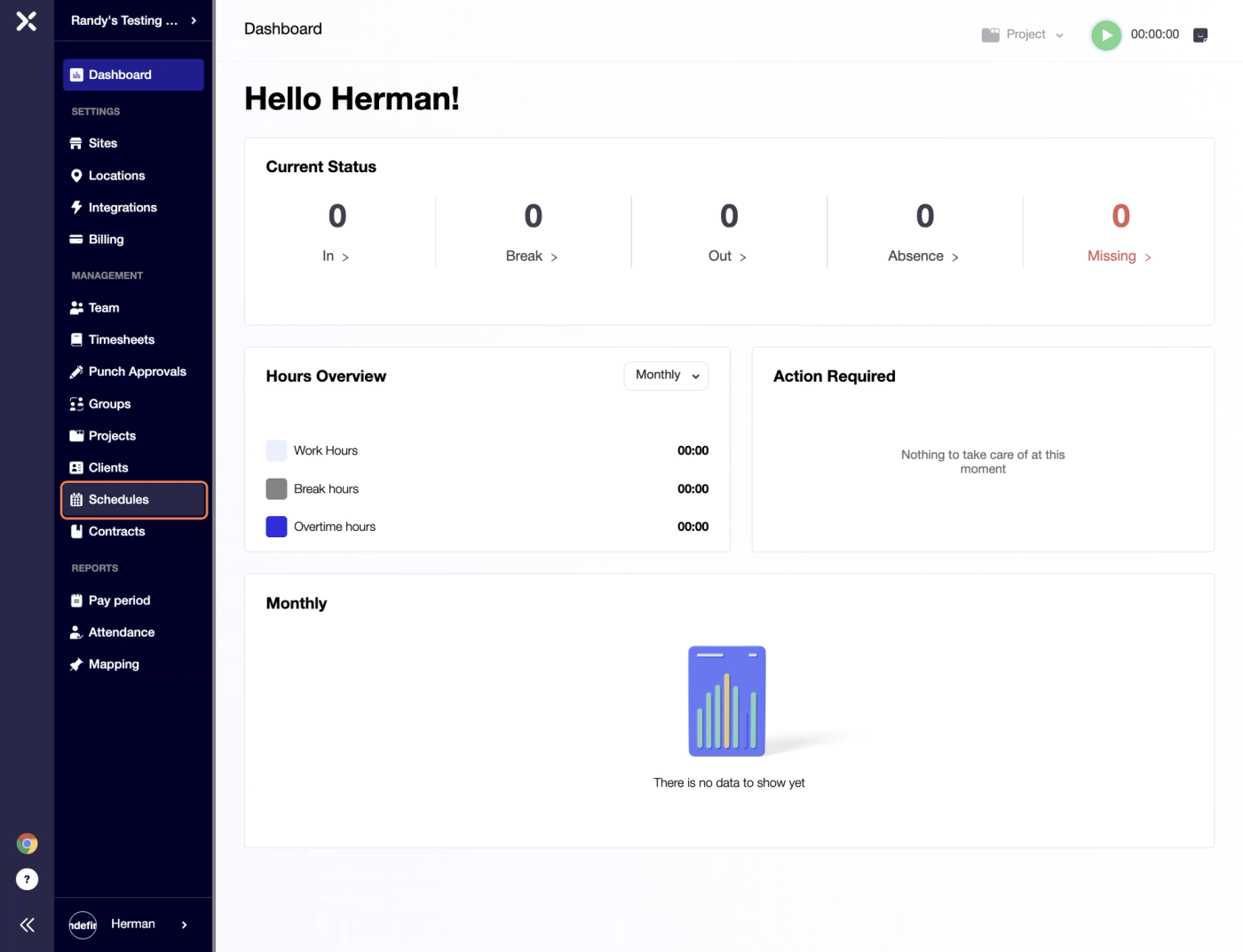
By default the system starts on a Dashboard screen page.
To add a new Schedules please click on Schedule navigation link in Management section of the left-hand side panel:
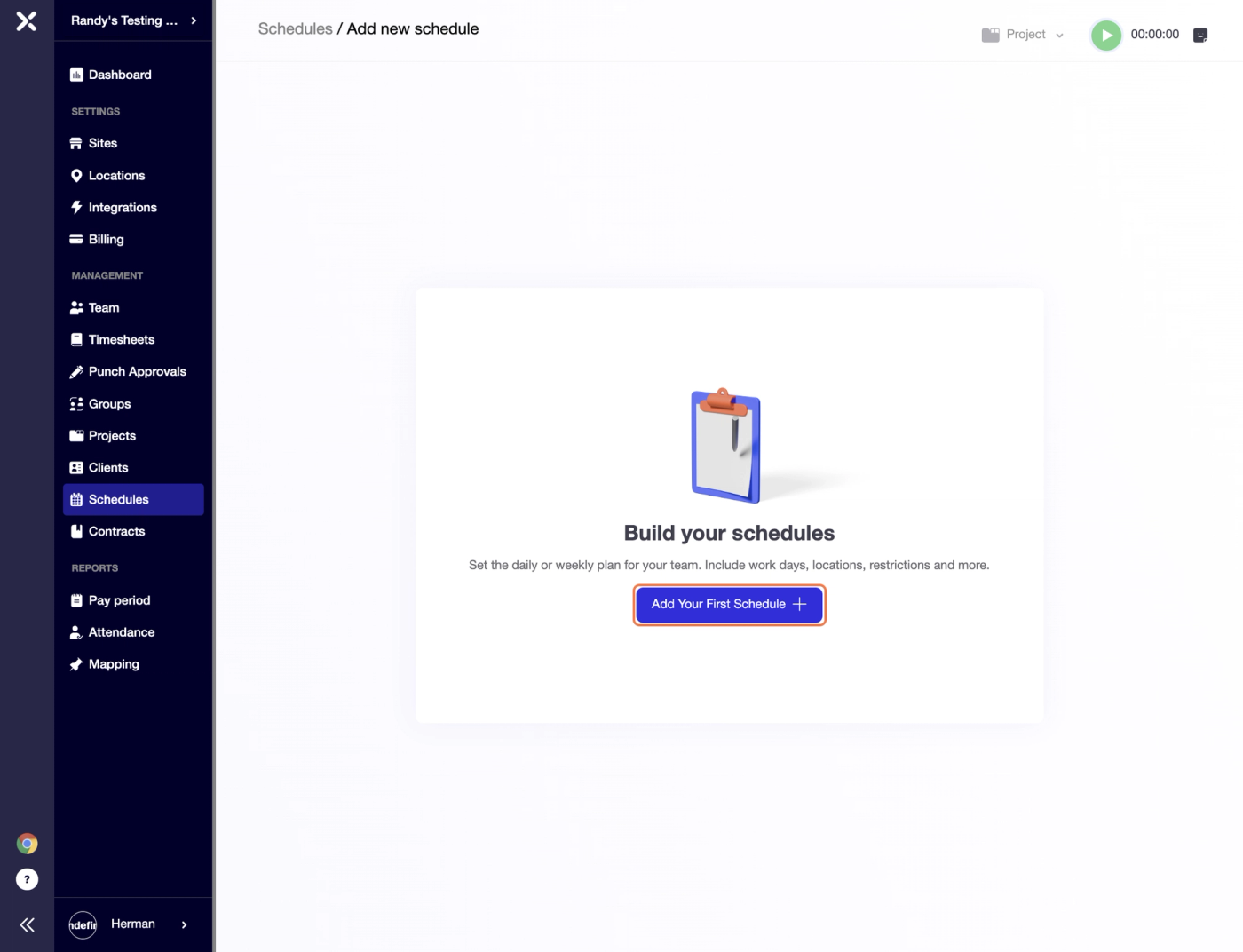
Once the Schedules screen opens, please click on "Add Your First Schedule +" button located in the centre of the screen:
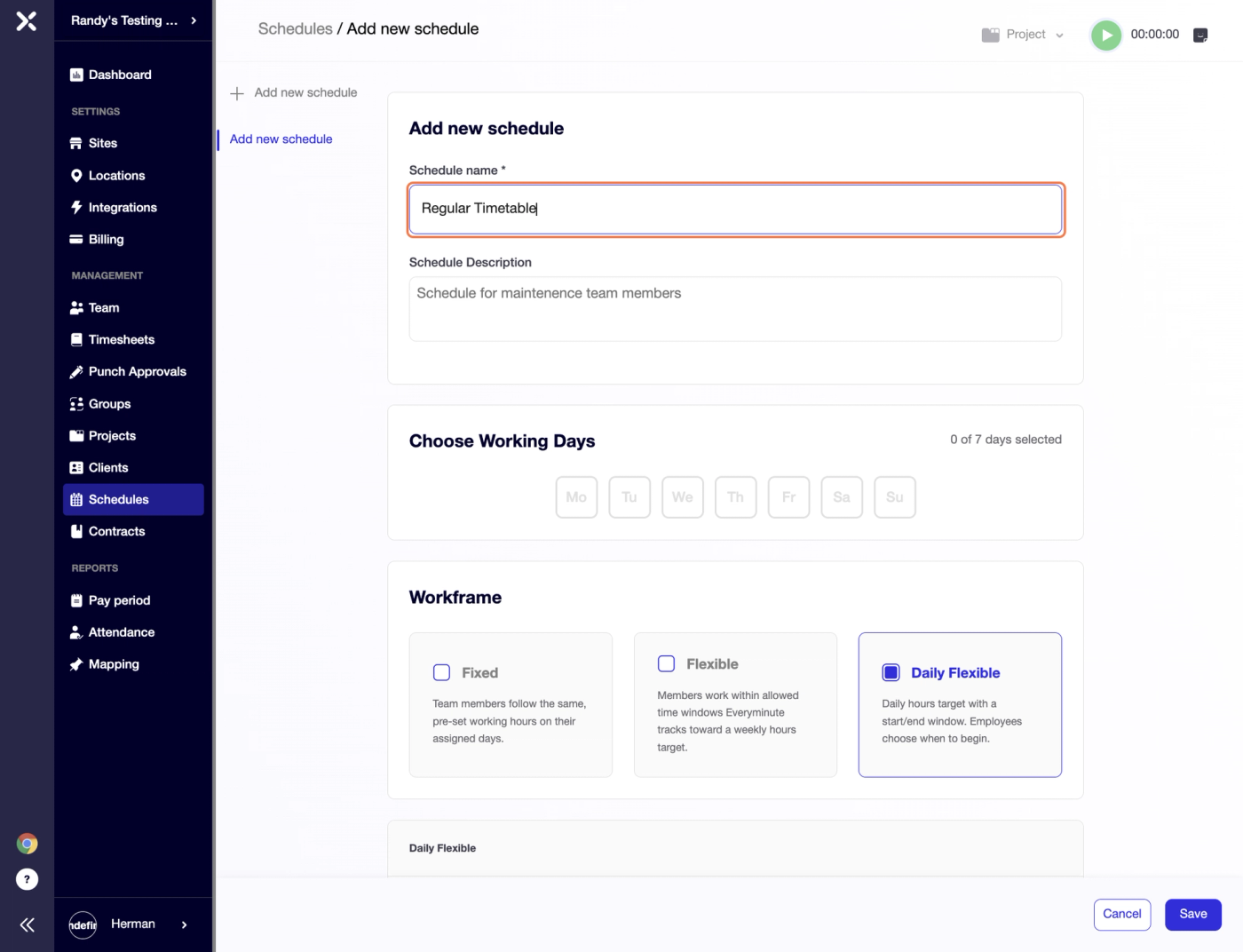
On the Add new schedule screen make sure to fill in the Schedule name; you can fill out Description box for more details as well.
When creating an Schedule you can choose Working Days. As scheduling feature is flexible you can select any days you might need. Furthermore, each employee can have their own specific schedule with any working days of your choice.
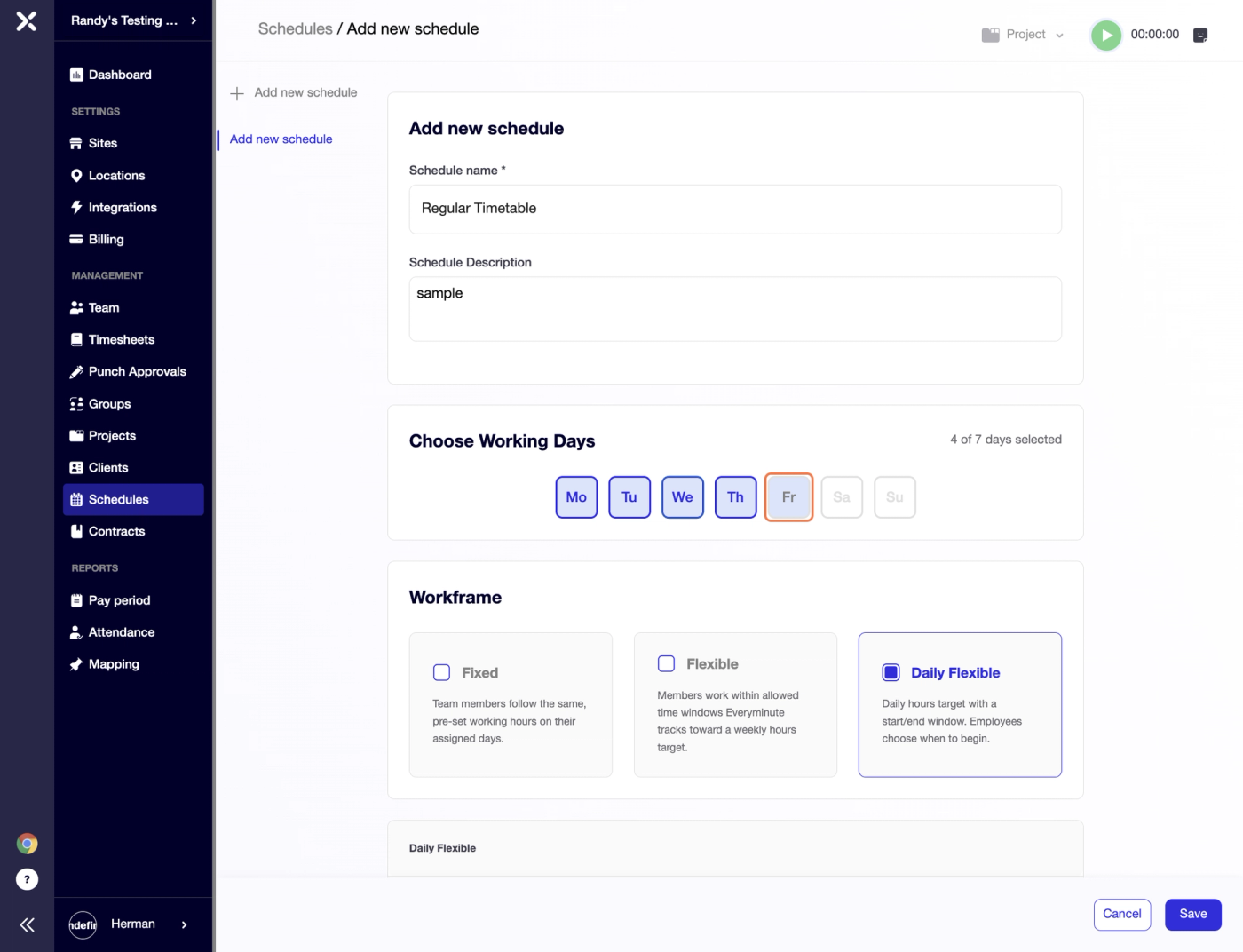
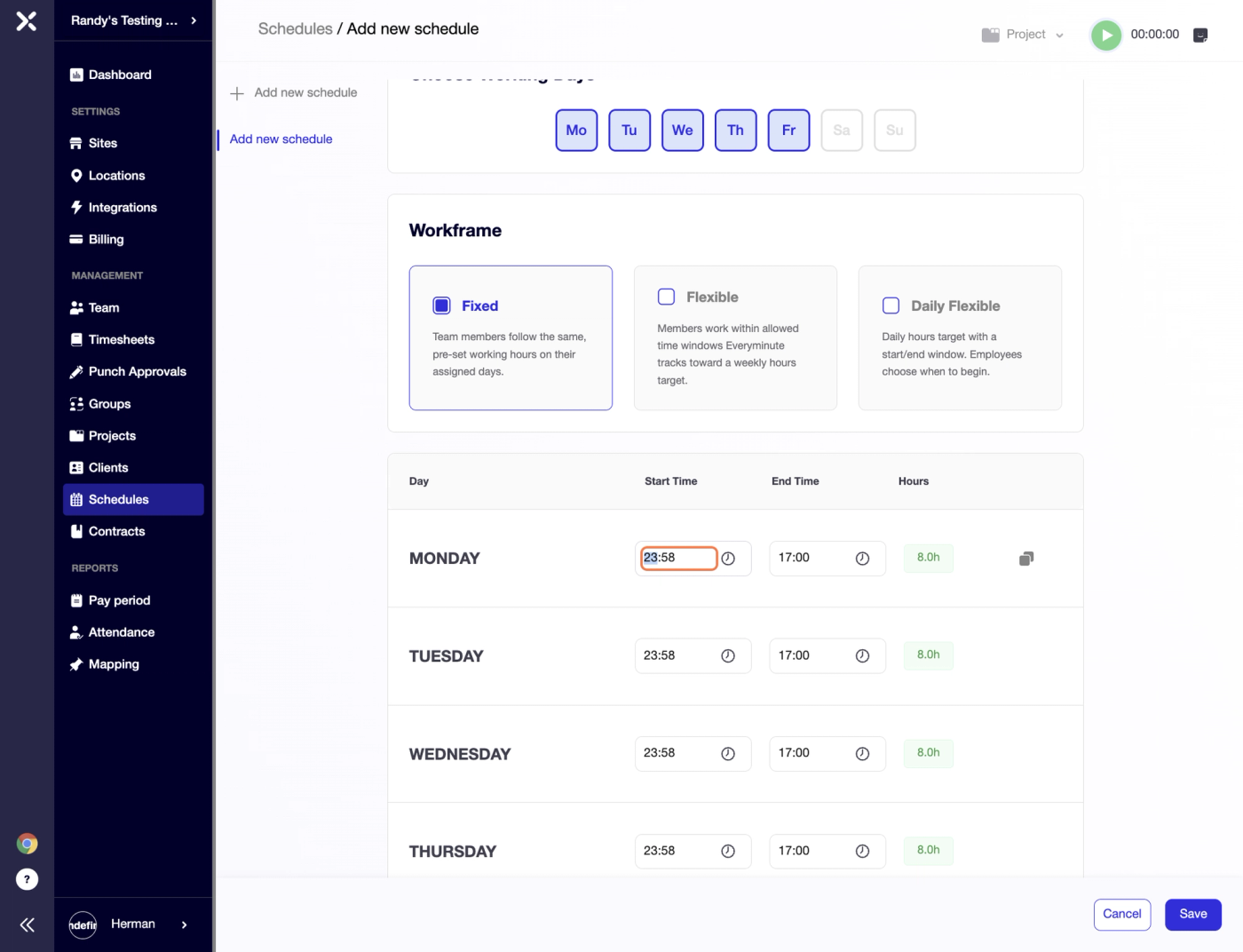
There is also an option to choose from a particular Workframe: Fixed, Flexible or Daily Flexible.
Fixed Workframe means that you can create stable working timetable for your employees with a pre-set Start and End Time on any given working day.
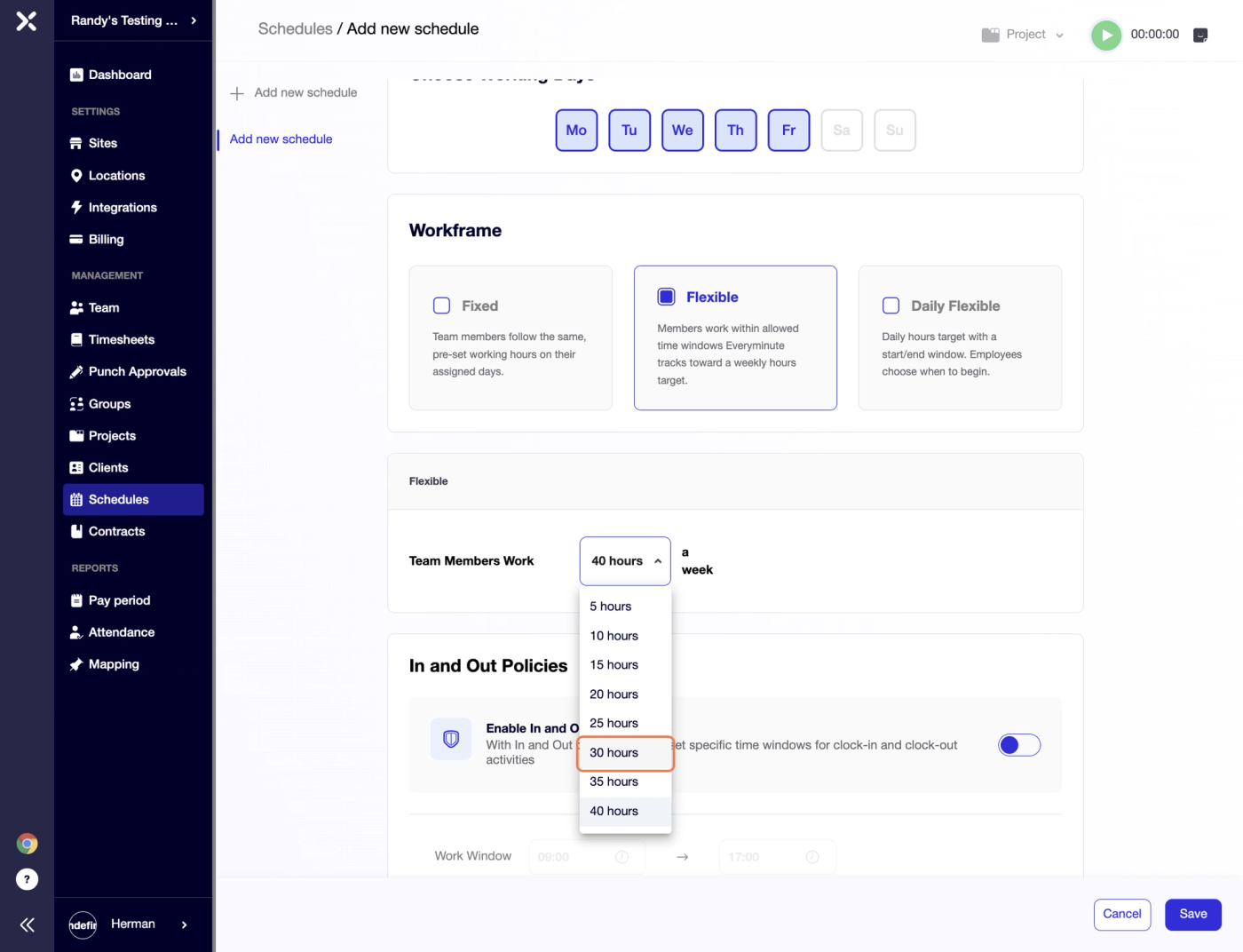
Flexible Workframe means that your employees can have a fluctuating nature of their shift which would only require a pre-set number of working hours a week.
The only limiting option on flexible shift scheduling would be Enable In and Out Policies;
With In and Out policies switched on, you can set time windows for clock-ins and -outs.
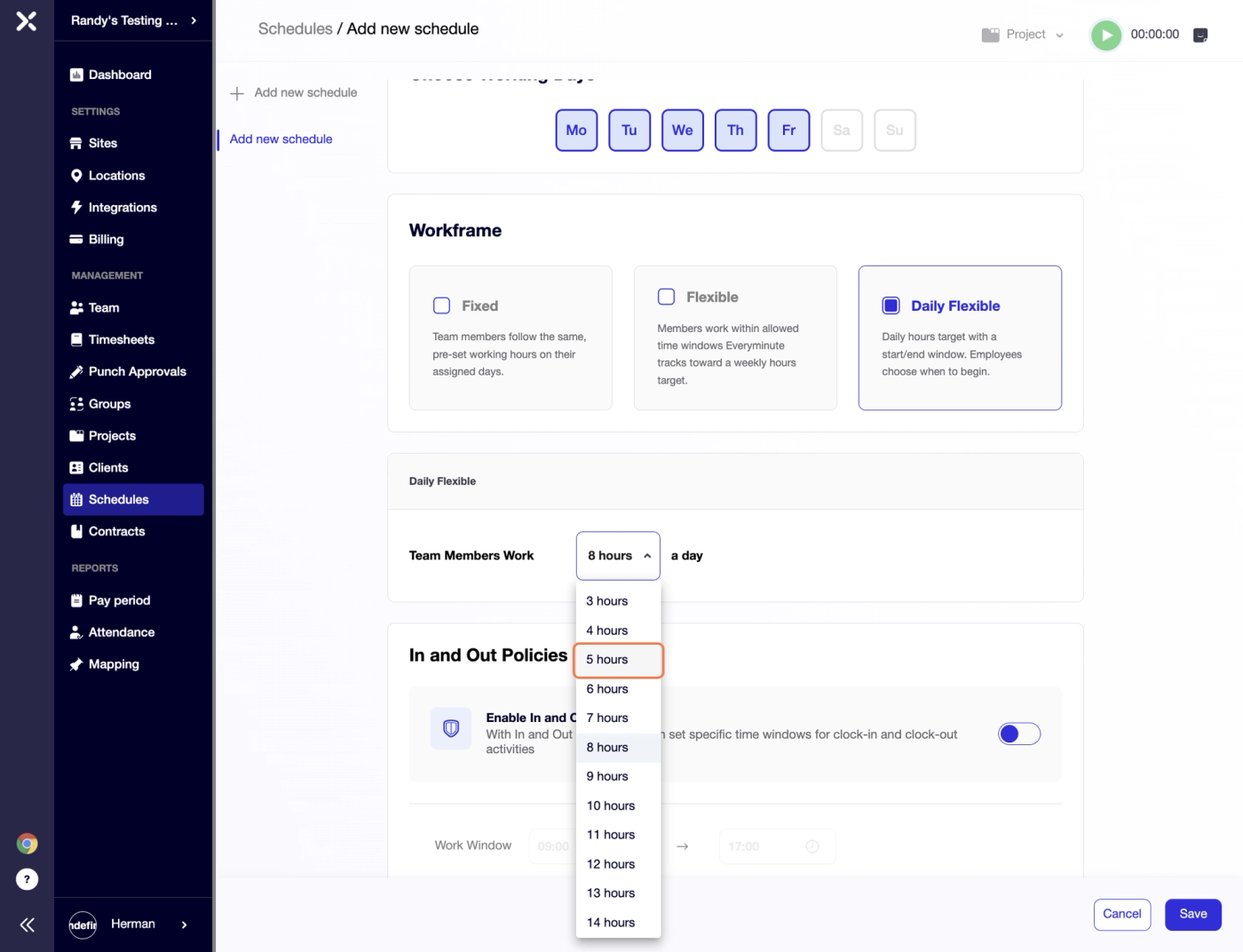
Daily Flexible schedule means that an employee needs to work a specific number of hours a shift on days of your choice; Enable In and Out Policies feature is also available for this type of Workframe.
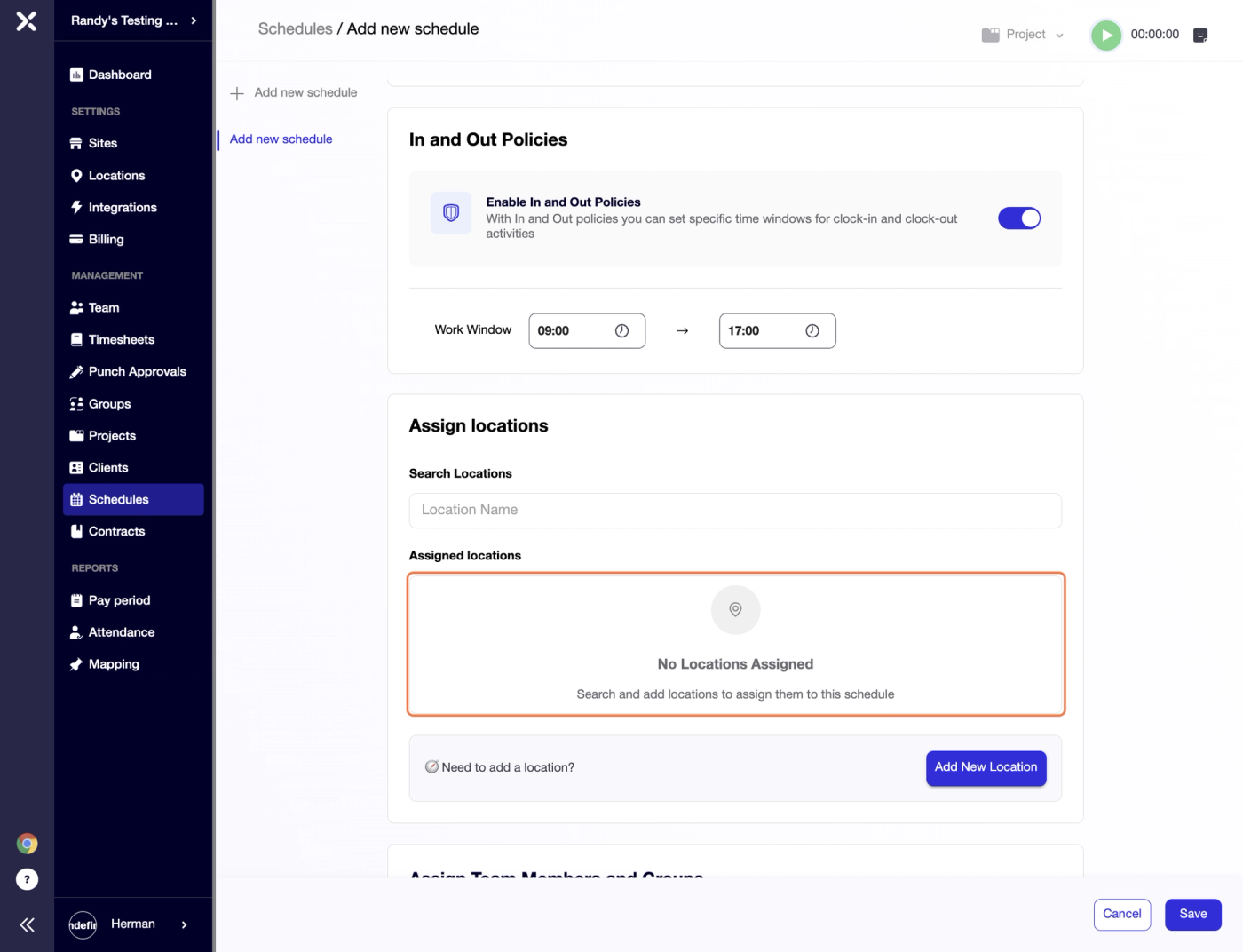
Next you can assign Locations to the Schedule you have set up.
There is an option to choose from existing Locations or create a new one.
You can skip this step if it's irrelevant.
When the Location has been assigned or skipped, you can move to adding Team Members to this specific Schedule.
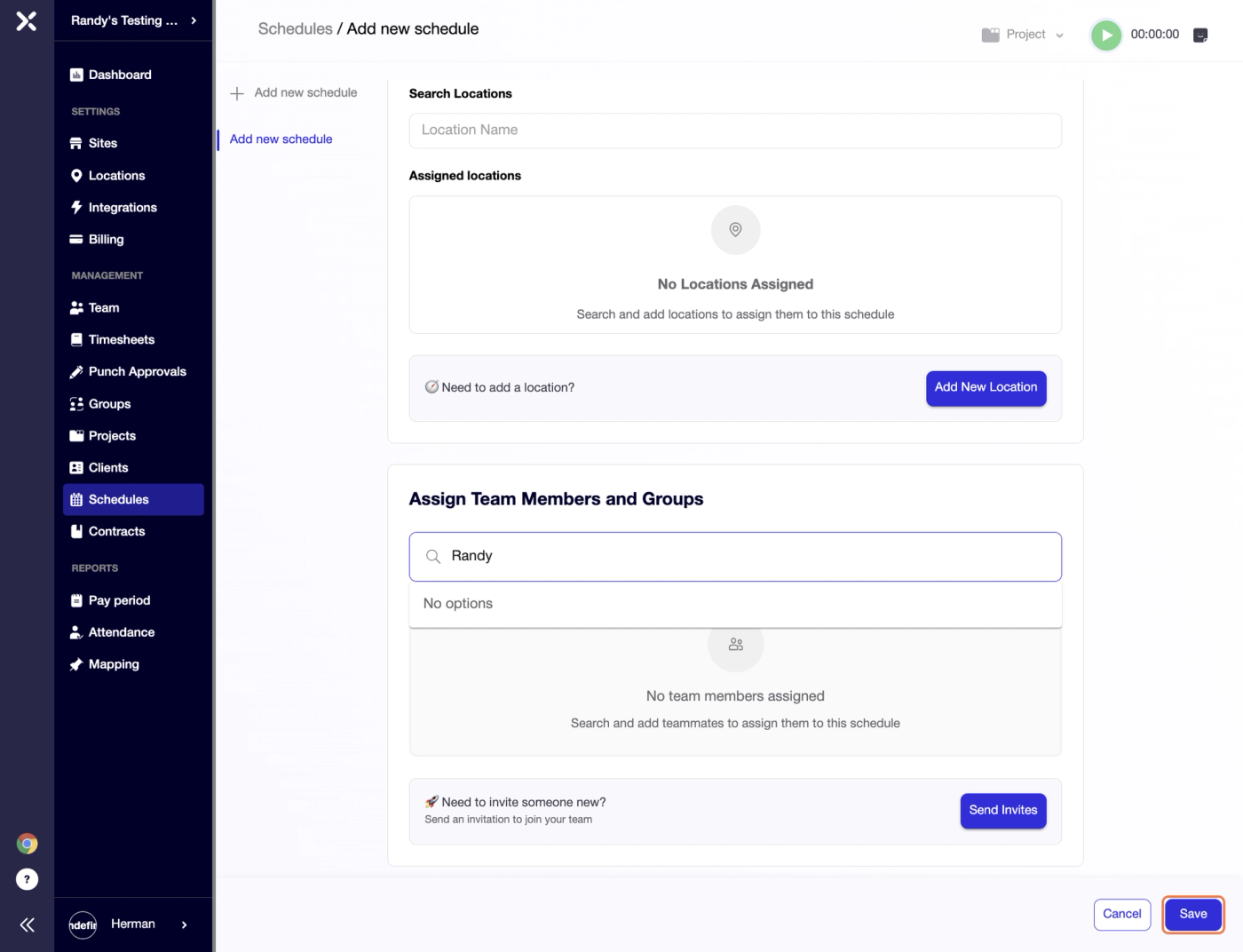
After all the necessary employees have been assigned you can save the Schedule with all previously set up parameters by clicking "Save" button in the bottom right corner.
Try Timedox free for 14 days
GPS-verified time tracking, automated timesheets, and real-time reporting. No credit card required.
Herman Zviertsev
Customer Care Team Lead at Timedox