To add a new Location please click on Location navigation link in Settings section of the left-hand side panel:
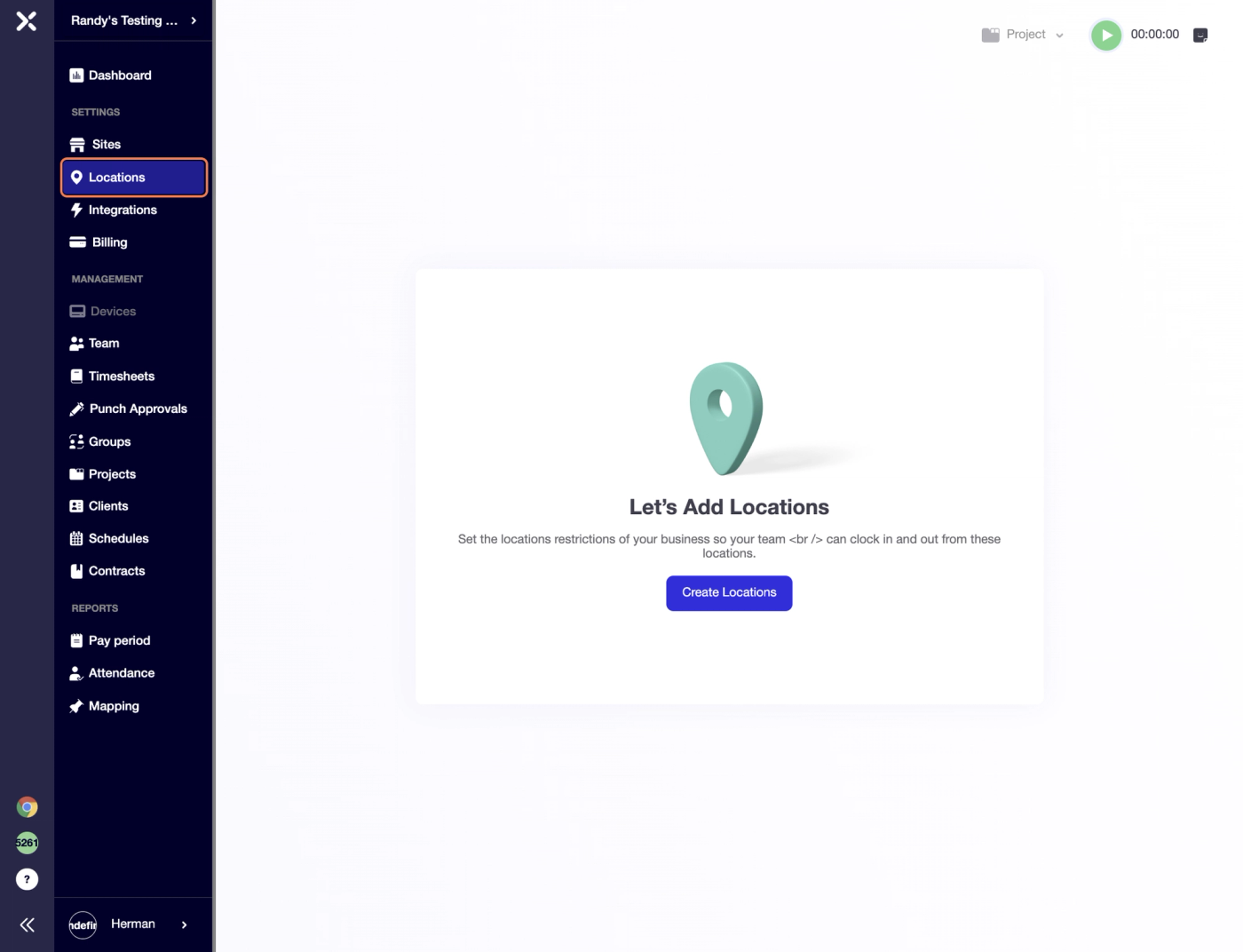
Once the Locations screen opens, please click on "Create Locations" button placed in the centre of the screen:
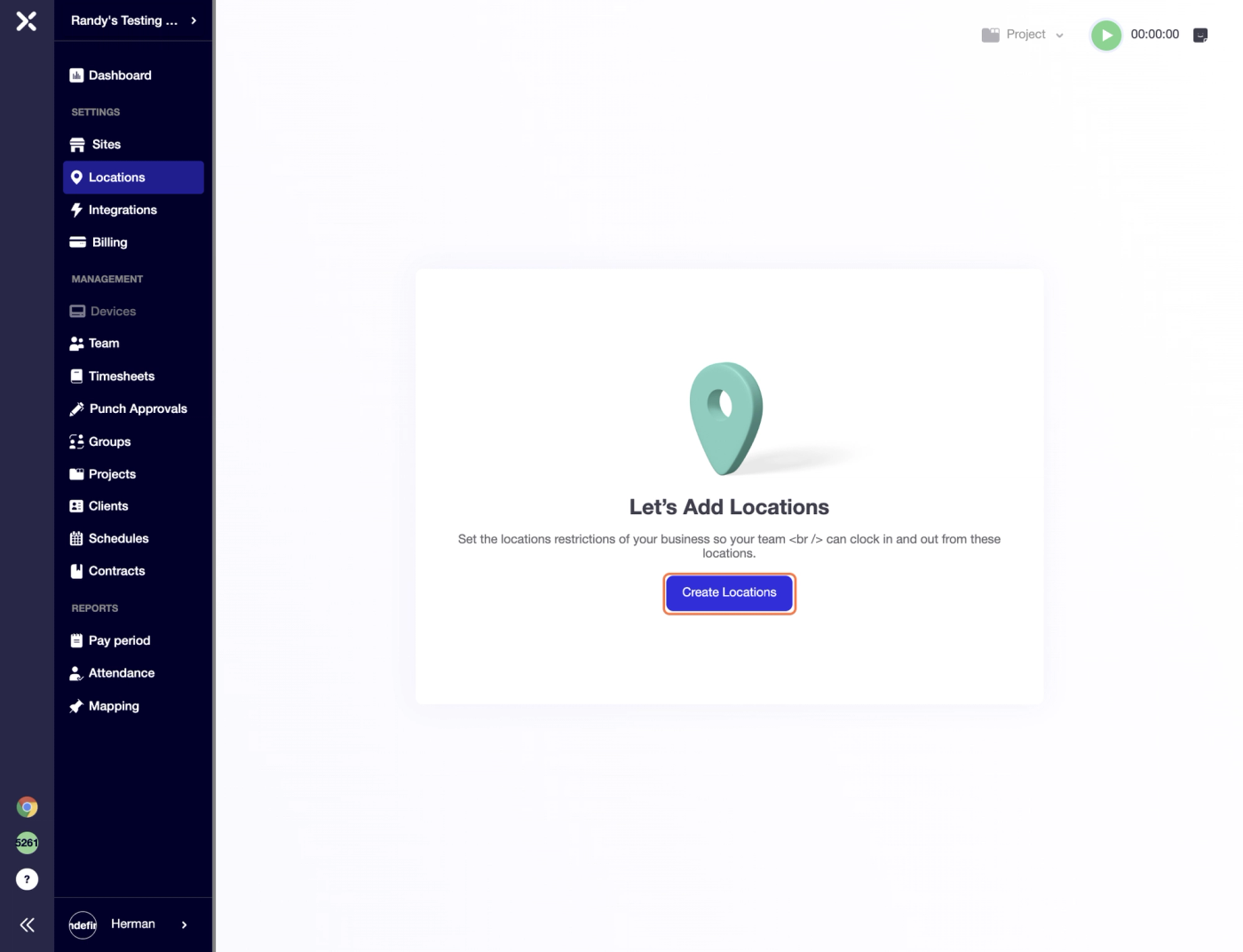
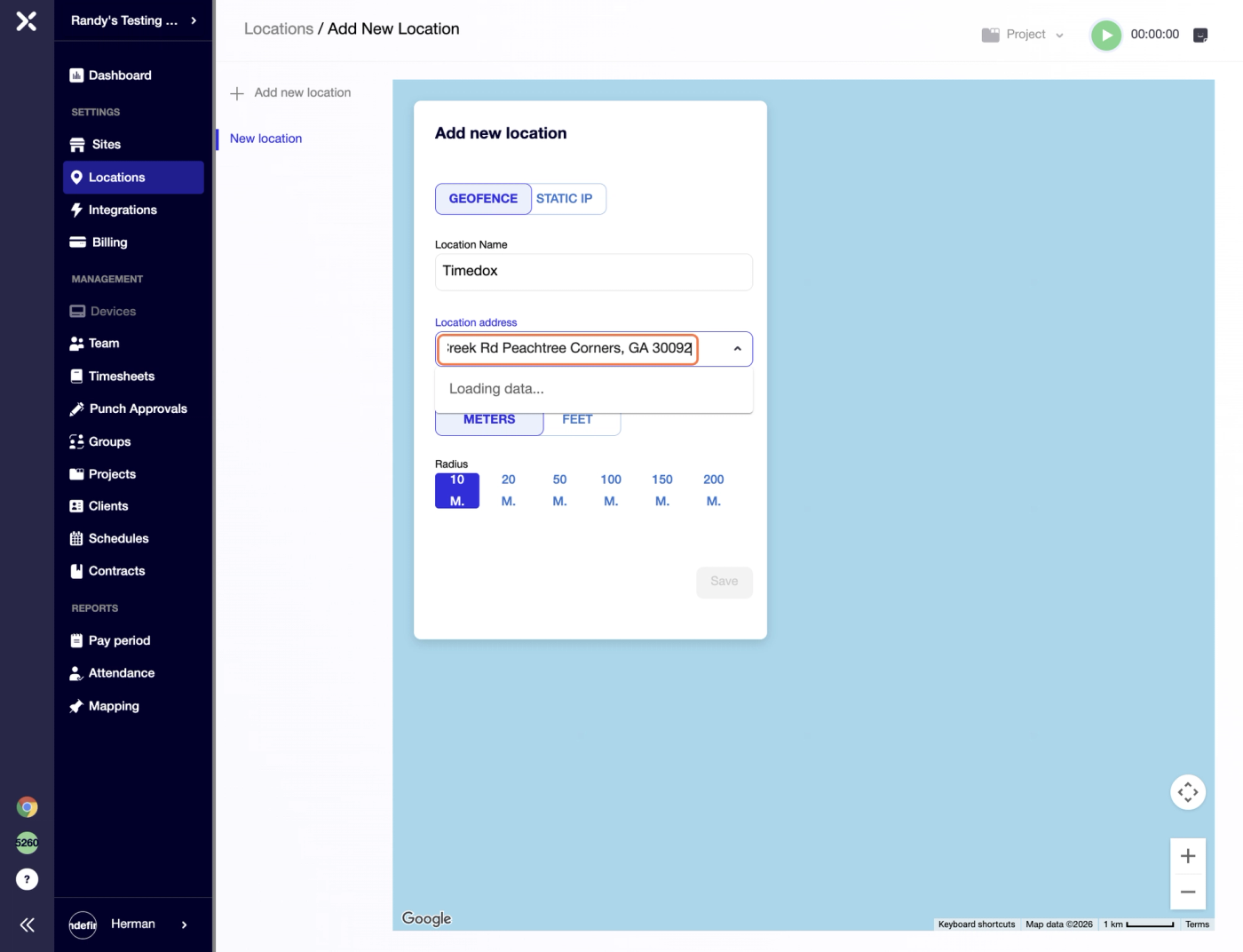
Choose between GEOFENCE and STATIC IP options and proceed to naming the job site.
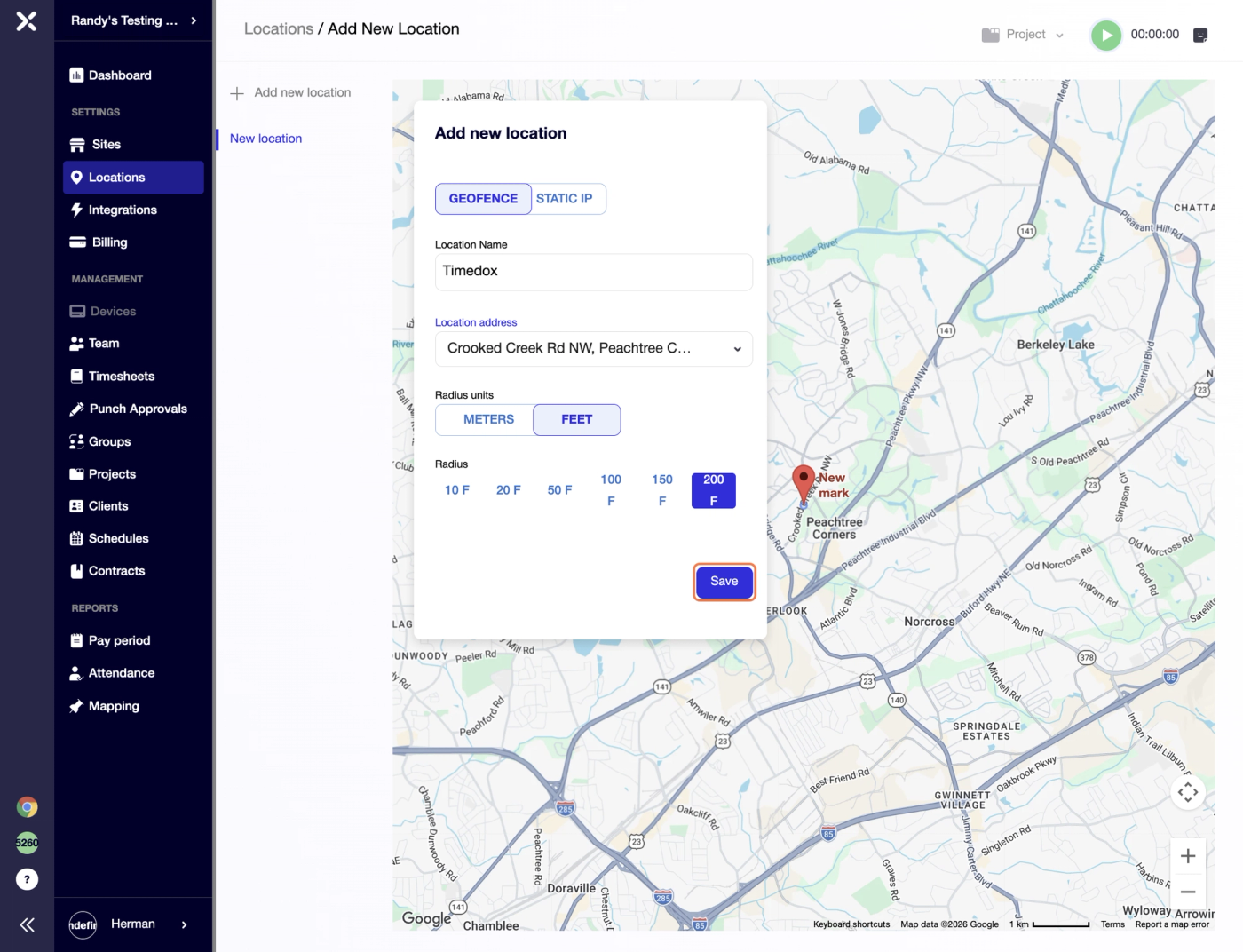
After the name has been added please fill in the correct address and the website will automatically pull up location geo positioning at the same time showing the site on the map.
You can select radius units, i.e. choose between meters and feet (meters would provide a bigger area, roughly 3x the size compared to feet)
Once radius settings have been applied, please click "Save".
Alternatively, you can proceed with STATIC IP option for your location if that suits your needs.
Static IP uses a fixed, unchanging internet protocol address mapped to a specific physical location. When a device connects to the network on site, a server checks that permanent IP against a geographic database. If the IP belongs to the approved office or area, access is granted; otherwise, it is blocked.
Type the Static IP manually or populate it automatically by pressing "Get my IP" link.
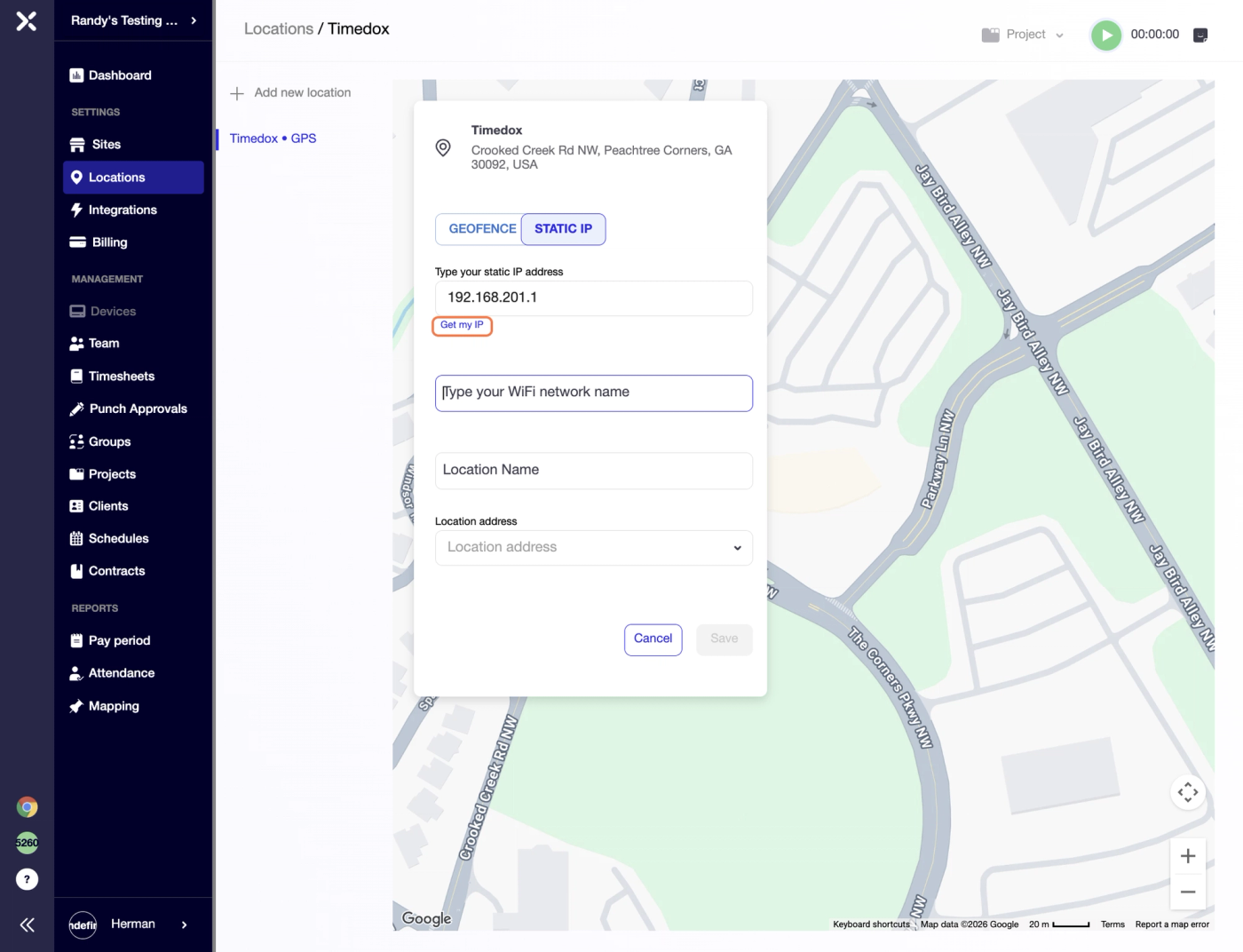
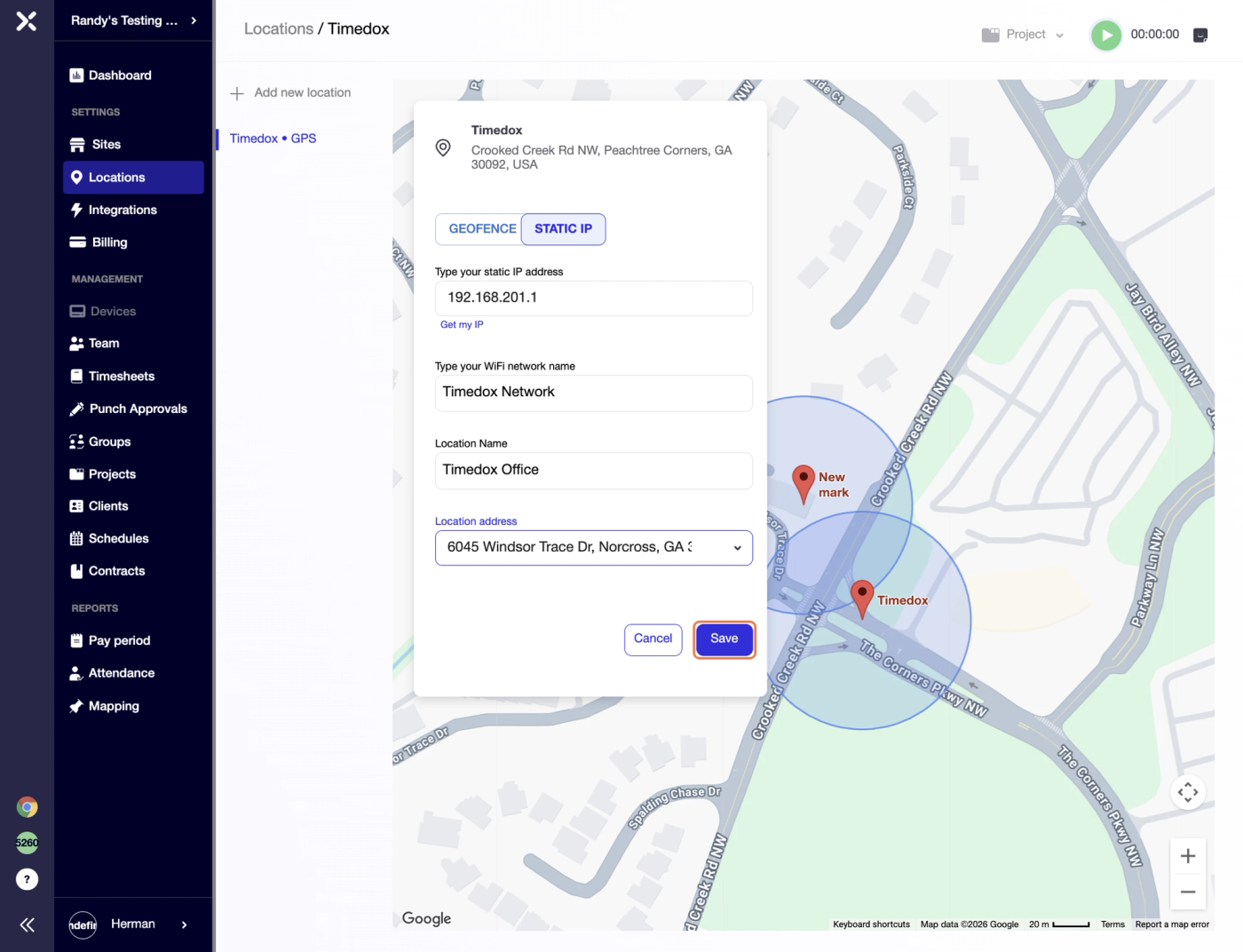
Then you can type the Network name, Location name and address.
After all the fields have been filled in proceed to click "Save".
Try Timedox free for 14 days
GPS-verified time tracking, automated timesheets, and real-time reporting. No credit card required.
Herman Zviertsev
Customer Care Team Lead at Timedox